Welcome to my home lab. It’s been sixish years since my last update, and a lot has changed – though the important stuff hasn’t. Most of my gear still comes from eBay deals, upgraded as time, money, and need allow. Here’s the full walkthrough: the rack and the hardware in it, the network, the software stack (VCF, Horizon, and NVIDIA GPUs), real power and cooling numbers, and what’s coming next.
What’s Changed
What has changed over 6 years? A lot! I cycled out some of my old hardware, for example the Dell R610 is now a shelf on the top of my rack holding spare drives, NICs, and other parts. The Cisco C240 has been retired, and as is often the case, my AI system Deep Thought long since became outdated and is now a desktop waiting for retirement.
I’ve done a lot on the networking, removing the old home routers that provided DHCP for my environment. This also brought about several security updates including a robust set of VLANs, firewalls, and routers. All of this becomes increasingly important as AI moves to the front of the line for security threats.
The Overview
I’ve got a home lab larger than many of the environments I deployed when I started doing virtualization. I currently have 7 physical hosts, 3 NVIDIA GPUs, switches from unmanaged gigabit to 56 gigabit InfiniBand (currently idle), miles of cables, and various software configurations.
That software includes a two-node VMware VCF 9.1.0 management cluster (I know, you think not supported, and you’re right, it’s not supported for production use but works just fine for a lab), an Omnissa Horizon 2606 environment, along with developer desktops for different AI tools, and some CUDA-Q.
Most of this gear in my lab is not on the HCLs or it’s about to fall off. That’s fine for a home lab. They don’t need support; they just need to be operational.
For those wanting a quick tabular form of my home lab, here you go:
| Hardware | CPU | RAM (GB) | NIC | GPU | OS/Hypervisor | Role |
|---|---|---|---|---|---|---|
| EqualLogic PS5000 | – | – | – | – | – | Year-end backup target |
| VRTX Chassis | – | – | – | – | – | Blade container |
| M640 – Slot 1 | 2 x Intel Xeon Silver 4114 @ 2.20GHz w/10 cores | 192 | Broadcom NetXtreme Gigabit Ethernet (BCM5720) Mellanox ConnectX-4 LX 25GbE SFP Adapter | N/A | (Varies) Currently: Nutanix CE | Nutanix CE |
| M640 – Slot 2 | 2 x Intel Xeon Silver 4114 @ 2.20GHz w/10 cores | 192 | Broadcom NetXtreme Gigabit Ethernet (BCM5720) Mellanox ConnectX-4 LX 25GbE SFP Adapter | N/A | ESX 9.1.0 | VCF 9.1.0 Management Cluster |
| M640 – Slot 3 | 2 x Intel Xeon Silver 4114 @ 2.20GHz w/10 cores | 192 | Broadcom NetXtreme Gigabit Ethernet (BCM5720) Mellanox ConnectX-4 LX 25GbE SFP Adapter | N/A | ESX 9.1.0 | VCF 9.1.0 Management Cluster |
| M640 – Slot 4 | 2 x Intel Xeon Silver 4114 @ 2.20GHz w/10 cores | 128 | Broadcom NetXtreme Gigabit Ethernet (BCM5720) Mellanox ConnectX-4 LX 25GbE SFP Adapter | N/A | (Varies) | Workload |
| R720 | Intel Xeon E5-2640 @ 2.50GHz w/6 cores | 48 | QLogic 10GbE 2P 57810S Adapter Broadcom 10G/GbE 2+2P 57800 rNDC | NVIDIA P4 | ESXi 8.0 | vSphere 8 operations cluster |
| R730 | Intel Xeon E5-2630 v3 @ 2.40GHz w/8 cores | 128 | QLogic 577xx/578xx 10 Gb Ethernet BCM57800 Broadcom NetXtreme II 10 Gb Ethernet BCM57810 | NVIDIA P4 | ESXi 8.0 | vSphere 8 operations cluster |
| Force10 Z9000 | – | – | – | – | – | 40GbE East-West switch |
| Dell N4032F | – | – | – | – | – | 10GbE Core Switch |
| Dell 6224 (stacked pair) | – | – | – | – | – | 1GbE TOR switch |
| R6515 | AMD EPYC 7502P 32-Core @ 2.5GHz | 192 | Broadcom Adv. Dual 25Gb Ethernet Broadcom NetXtreme Gigabit Ethernet | NVIDIA L4 | ESX 9.1.0 | Horizon / AI host |
| Synology DS1618+ | – | – | – | – | – | Primary SAN/NFS target |
Hardware
My 26U rack holds most of the lab, but not all of it. Some things sit on top of the rack; some are rack adjacent. It’s also worth noting that not all the equipment is on all the time. I will do my best to highlight this as we walk through things.

Starting at the bottom of the rack for my home lab. I have three 1500VA CyberPower battery backups for the environment. When a bulk of the environment is on I’ve got about 5 minutes to shut things down, or hope the power comes back, or watch systems crash in new and various ways. Most of the time, the environment will stay up for about 15 minutes. Just long enough for me to get a notification from my monitoring system that power is down, log in, and shut things down.
I have a PS5000 EqualLogic array that I hardly use, sitting in the bottom of the rack. It’s there mainly for nostalgia anymore. I also tend to do backups to it once a year or so of my different environments and then shut it off. It has plenty of capacity but is slow.
Then I have a Dell VRTX blade system. It’s loaded with four Dell M640 blades. Each blade has dual Intel Xeon Silver 4114 CPUs with 10 cores each at 2.20GHz. Each node, except one, has 192GB of memory, the last one has 128GB, as I pulled some for testing on a system I hope to bring online. The storage on the blades varies depending on what I’m working on and can vary between spinning SAS disks, SAS and SATA SSDs, as well as PCIe SSDs. Each blade has support for 2 drives. The blades have onboard 1GbE connections. Additionally, I have ConnectX-4 25GbE NICs installed in the mapped PCIe slots for each of the blades. This allows me to accommodate just about any configuration I need to test with. There are also 15 SSDs configured on the VRTX that are controlled by the VRTX RAID controller. The RAID controllers are no longer supported in vSphere so they aren’t used that much.
I also have several other variations of Blades I can use in the chassis including M610s, M620s, and M630s as well as M640s of various configurations. This allows me the ability to quickly switch to other projects.
Moving up the rack, I have a 2U gap for the addition of a new server in the future so I can cycle off the next system in the rack.
That next system is a Dell PowerEdge R720 with a pair of SAS drives with dual Intel Xeon E5-2640 with 6 cores each at 2.50GHz. This system has 48GB of RAM in it. This system is typically powered off as it is the oldest system in my environment. It also has an NVIDIA P4 GPU in one of the PCI slots. Additionally, this has a QLogic 10GbE 57810S dual port PCI NIC and I changed out the quad port on-board NIC for a combo 2x10GbE+2x1GbE card.
Above the R720 is a Dell PowerEdge R730. It has a similar configuration to the R720. It runs dual Intel Xeon E5-2630 v3 processors at 2.40GHz with 128GB of RAM. It also has an NVIDIA P4 card, the QLogic 57800, and the combo on-board NIC. This one is powered on most of the time.
The next item in the rack is a Dell Force10 Z9000 40GbE, 32 port QSFP switch. I really enjoy this switch, though I don’t run it very often. One, because it’s a bit noisy and two, my 40GbE NICs are no longer on the VMware HCL. This is a fun switch to reference when you have an ISP saying “they can support any network speed I might have…” They tend to change their tune when I ask about QSFP+ transceivers compatible with their network. I hope to find some 40GbE NICs that are on the HCL to leverage this switch again.
Above that is my 10GbE lab switch, a Dell N4032F 24 port SFP switch. This has all of my lab servers connected to it. All the 10GbE cards I talked about plug into this. It’s running stock fans and is reasonably quiet. Beyond just the SFP connectors I also have a 4 port 10GbE copper card. This allows me to use networking patch cables to connect to systems that support 10GbE RJ45 ethernet ports.
Getting to the top of my rack, there are two Dell 6224 1GbE switches. They each have 24-1GbE ports and provide connections to anything that’s not 10GbE. They are stacked together and configured for as much redundancy as possible.
The remaining hardware is loose in the lab. I have a couple of small unmanaged 1GbE switches that are for iDRAC and quick drops on a lab VLAN when I don’t want to configure a switch port.
The storage for this environment is a Synology DS1618+ with a DX510 expansion unit. The drives are all spinning rust at around 70TB raw capacity across 11 bays. You would think this would be a problem, but I have two 1TB SSD cache drives on an E10M20-T1 card. It does a very nice job keeping up with the lab. The array sits on top of my lab rack and has the four standard 1GbE copper NICs as well as one copper 10GbE NIC on the E10M20-T1 card.
The last permanent part of the lab is my Dell PowerEdge R6515. The R6515 has an AMD EPYC 7502P 32-Core Processor, with 192GB of RAM. It has dual Broadcom BCM57414 NetXtreme-E 10GbE/25GbE RDMA ports on board. This system also has an NVIDIA L4 GPU. Beyond that it has some local SSDs that I don’t typically use as I tend to boot off the BOSS card.
The Receipts
For those that want the receipts to see what I am talking about, here they are. These are pictures of my current home lab. These might be a little gratuitous for younger IT admins and home labbers.
You’ve been warned!
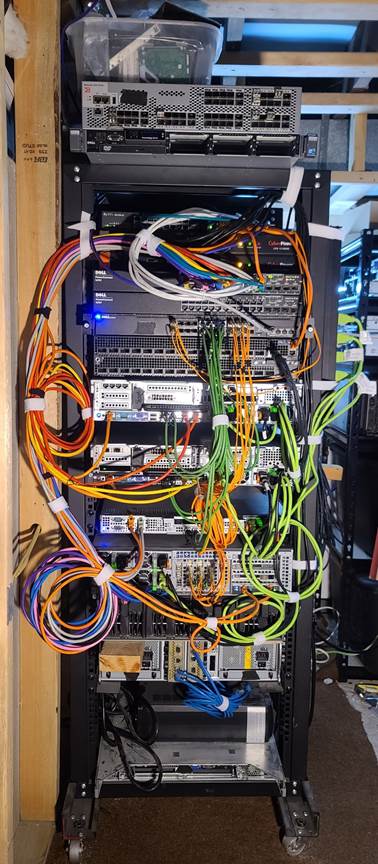
This is the back of my home lab rack. We’ll start at the bottom and work our way up. The rack has eight 2-inch steel swivel casters. I put those in so I could move the rack around more easily, it didn’t help. The silver thing at the bottom of the rack is a Dell PowerEdge 1650. I wanted something to keep the UPSs off the floor.
Above the 1650 are two of the UPSs. The third one sits in front of the rack as they won’t all fit on the bottom of the rack. These two UPSs feed the PDUs at the top of the rack. They are color coded: I have an orange UPS and a white UPS, PDU, and marked cables. Up next is the EqualLogic PS5000. It’s currently disconnected as I only use it for my year end backups at this point.
Before you ask, yes that is a piece of wood protruding from the back. I haven’t been able to find a cheap set of rails for the VRTX or a good shelf system that won’t break the bank, so I use the wood to keep the VRTX separated from the EqualLogic array.
On the left side of the picture you’ll see a cable loop with the 1GbE cables that feed the VRTX. The cables are color coded as to which blade they connect to. There are two orange cables that go to the right of the VRTX. All of my OOB/iDRAC/CMC connections are in orange and go up top to a small switch.
In the center of the VRTX are 10GbE connections for each of the blades in the VRTX. Currently one blade is not connected to the 10GbE switch. And on the right of the VRTX is all the power coming in. There are power drops from all three UPSs coming to the VRTX. The lime green cables are from the third UPS.
Above the VRTX is the Dell R6515. I moved it here to make taking pictures of the home lab easier. Normally it sits on a shelf to the right of the rack. Again, color coded cables are used to make it easy to track down a cable. At this point we also see the bundle of green cables in the middle of the rack start to come into play. These are direct attach copper (DAC) cables connecting the rack mount servers to the 10GbE switch. You might be curious why I didn’t use DACs for the VRTX. The answer is I didn’t have enough to support the VRTX links, so I used fiber with optical transceivers.
The next two servers are the R720 and the R730. Like the rest of the environment, they are color coded. Orange for iDRAC, yellow 1GbE links for the R720, red 1GbE links for the R730, 10GbE links in the center, and color-coded power on the right.
Above the servers starts the switching portion of the rack. First up is the Z9000. Because I don’t have any cards on the HCL that support 40GbE connectivity, I’ve pulled the connections. On the right side of the rack, you will see what looks like a thick cable plugged into the top right port of the Z9000. This is a breakout cable that connects to one of the Dell 6224 switches, with the ability to connect to the other 6224, creating a backbone connection.
Above the Z9000 is the Dell N4032F 10GbE switch. On the left side of the ports are two fiber drops in ports 1 and 2. These are the uplink to the top 6224 switch. At the far right, there is a gray Cat6 network cable. That is the 10GbE link to the Synology DS1618+.
Nearing the top of the rack are two Dell 6224 switches that are stacked together. All of the network connections terminate on this set of switches. The bundle of white cables in the shape of a ‘C’ feed the Synology array.
The orange cable on the far-right side of the switch (port 23) is an uplink to my iDRAC switch. This is just a little unmanaged desktop switch that sits on top of my two PDUs.
That gets us through the contents of the rack proper, now let’s talk about three other items you might have noticed. Starting on the right side of the rack, I haven’t figured out where to put my third PDU, the one with the green connectors. For the time being I have a smaller PDU strapped to the side of the rack.
On top of the rack you probably notice a couple of things as well. The first item is the Dell R610 server, this was one of my old ESXi hosts from back in the 6.5 days, it has been demoted to shelf. I use it on occasion when I buy used SAN drives on eBay that need a new layout. On top of that is a Brocade 10GbE switch which I had used for a while before getting the Dell N4032F. The latter was quieter and used less electricity. And lastly there is a tub of spare drives and other parts for the lab.
That gets us through the back of the rack, now let’s look at the side of the rack.
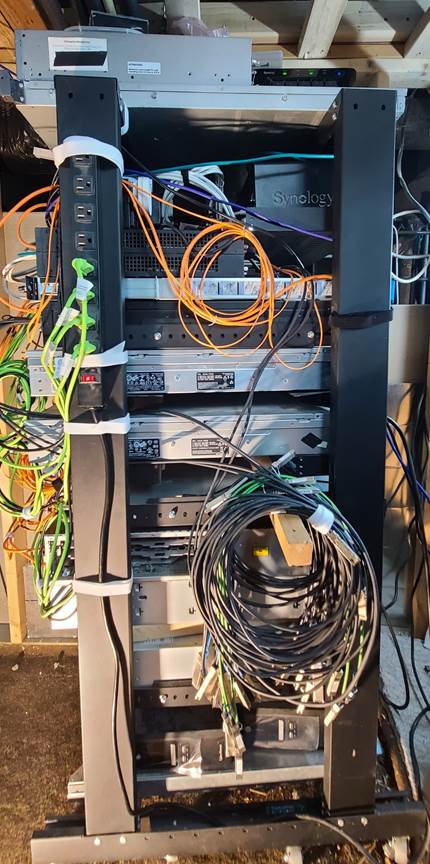
There’s not quite as much to see here, though there are still some things worth calling out. The big coil of cords hanging from the wooden block contains three sets of cables. The breakout cable is one of them as it’s about 5 meters long (it was cheaper on eBay than a 2-meter cable), and my spare DACs of various lengths are also there. And lastly, it has the QSFP DAC cables for the Z9000.
Above that is the fiber loops going to the Dell 6224 and the management cable going to the back of the Dell N4032F switch. On the left side you see the power for the third UPS. At the top right you see the Synology array, and at the very top right you can see the top edge of the Synology DX510 expansion.
That gets us to the last home lab picture. I hope this isn’t too much home lab for you. That is the front of the rack.
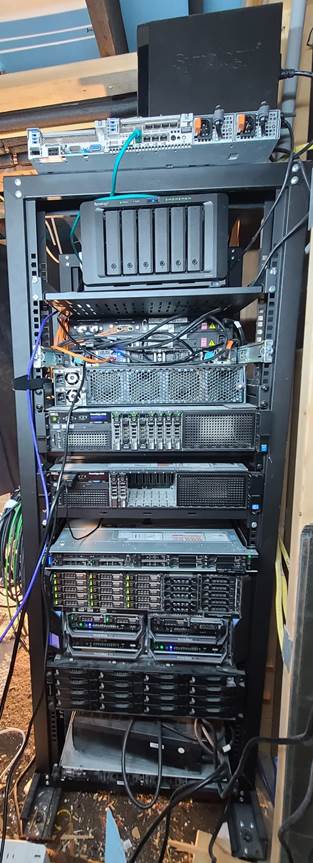
We have walked through all the different things that make up my home lab, and this last bit is the front of the rack. If you look at the VRTX it is half populated with drives. The R720 only has a set of mirrored boot drives in it. The R730 has two mirrored drives for boot and then a few TB of local storage. One other thing of note is the purple cable on the left side of the picture. That is the network uplink for the home lab and comes from my office.
This is what my home lab looks like. Now let’s talk about some of the hardware that’s not currently in use.
Other hardware
You might have heard me talk about how I have InfiniBand running in my lab. It’s there on a shelf to the right of the rack. I have a Mellanox SX6710 switch sitting idle. I don’t currently use it because my ConnectX-3 cards are no longer on the VMware HCL. So, it’s mostly a show piece now, while I keep my eyes open for something faster.
I have some barebones servers I’m working on as well on the shelf to the right of the rack. Once I have them working, they will be added to the lab for various projects.
Raspberry Pis and Jetson Nanos run around all over the lab for various activities. I know the Nanos are EOL, they’re just quick and easy to set up when you need something small like an edge device with a GPU/AI abilities.
I also have a few thin and zero clients that I occasionally break out for testing EUC work. I’m hoping to grow the fleet eventually as I still get hits on blog posts from back in the day on thin clients. So, if you are a manufacturer of thin clients and we haven’t talked, hit me up.
Networking
To be very clear, no lab services are exposed to the Internet, or most of the home network. It’s separated for a reason with a modern firewall.
I won’t get deep into my home lab networking for various reasons. It’s a segmented, isolated network of VLANs. This keeps my traffic separate and allows me to optimize it based on what the segment is used for.
The appropriate VLANs then hit a router with VLAN support. This provides secure ingress/egress into my lab environment and isolates it from everything else.
Software
The R720 and R730 run my primary vSphere environment. It mostly contains my jump boxes, VCSA, NVIDIA management servers, Omnissa Horizon Servers, along with basic testing servers and experiments. The storage for this comes from the Synology via iSCSI.
Two of the M640 blades create my VCF management environment. You might be thinking, I need 3 hosts for that and vSAN. Actually, I don’t. I’m using NFS shares from my Synology and it reduces the host requirement for my management cluster to two.
The other two blades fluctuate as to what they are used for, since I can just swap the drives or blades for other workloads. Recently I had them as my workload for VCF. Currently I’m in the process of setting up a single node Nutanix CE environment on one of the blades, though it’s tempting to shut down the VCF environment and set up a 3-node Nutanix CE environment.
Beyond that I am looking forward to building a Red Hat OpenShift environment of my own, as well as a Proxmox environment. I might even see about testing out HPE Morpheus. I keep hearing many in the community buzzing about it and I’d like to learn what it’s all about.
The last bit of infrastructure is the R6515. That is my NVIDIA and VDI host. I bounce the host around depending on what I am working on. Sometimes it’s my host for virtual desktops with VMware Horizon, other times it is my lab for AI or NVIDIA’s CUDA-Q. Sometimes I even mix the two and build VMs with vGPUs and run GPU workloads in them. (If that last one doesn’t make sense, refer to some of my previous GTC talks about building developer desktops.)
Virtual Desktops
In my lab I run a Horizon environment. It typically has two connection servers running. From those there are several pools established. I have:
- A regular non-persistent virtual desktop pool with Windows VMs.
- A Linux virtual desktop pool.
- A Windows vGPU pool
- A Linux vGPU pool
The pools can vary depending on what I am working on. The Linux pool currently gets more of my attention than others. This is because Linux ‘desktops’ are more relevant when you consider AI agents and providing them with their own sandboxed workspace. I’ve discussed this in previous blogs about making room for a new user.
Additionally, I think this environment will be stable long enough for me to stand up a Workspace ONE deployment. Enabling me to develop content around the Linux side of things.
Disaster Recovery
Short and sweet, this is a lab environment, many of the systems in it I don’t need to retain. I can conceivably lose the whole lab and not be out much more than the time it takes to rebuild it. For that reason, I only do a backup once a year of the whole environment. The important VMs are in a snapshotted LUN on the Synology if I need to revert because of an ID10T error. I will eventually configure replication between my primary Synology and another array so that I have off-site backups of the more important VMs.
Power and Cooling
How much does all this cost to run? Great question! With the R730, two M640s, the R6515, one 6224, the N4032F, and the DS1618 running, it costs around $200 USD a month (in the summer) between the power draw and cooling costs. We’ll call this the “normal load.”
According to the three UPSs my power draw under the normal load is 1.31kW. That works out to 31.44kWh per day and about 943.2kWh per month (30 days). According to PriceOfElectricity.com the average cost per kilowatt hour in Kansas is 15.27 cents (on October 10, 2026). That works out to $144.03 to keep my lab humming.
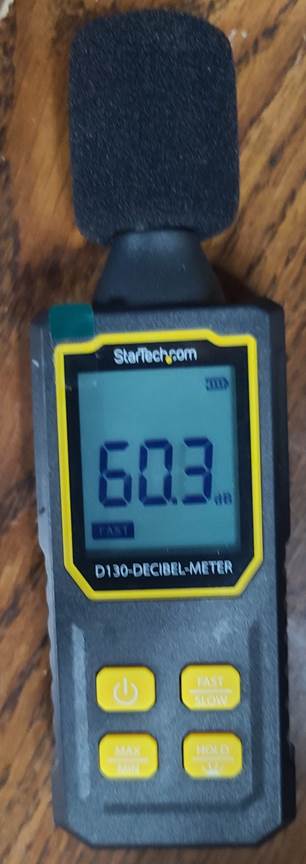
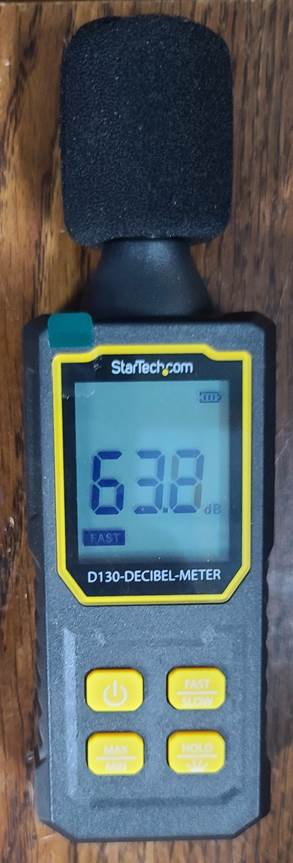
I also talked about noise. Pulling out my handy dandy decibel-meter. The ambient noise in the house is about 30dB, and my office sits at about 33dB. The noise level next to the rack under normal load is 60dB. When I turn on the Z9000 it jumps to about 63dB. Not much but it’s still noticeable. You can see this in the two pictures below. It’s also worth noting that the meter fluctuates by about 0.5dB as the background noise fluctuates.
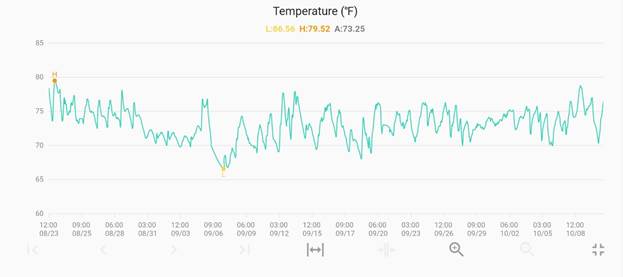
The back of the rack server room temperature averages about 73.25°F, the household cooling system handles keeping things cool for me. In the wintertime the heat from the servers circulates around the basement as the design is fairly open with few doors to restrict airflow. I get notifications if the temperature gets too high and can log in to shut things down.
Why All of This?
That’s a lot to cover. You may wonder why I do all this. I do this to learn. I love learning, it’s always fun to uncover new things. As you saw above, there are several new hypervisors I’d like to deploy as well as some AI models.
I’m not the only one who benefits from my lab. I hope my posts and discussions help visitors to my blog. This also makes the different sessions I present come to life. I don’t just read the docs and regurgitate what they say to do, I go and build it. This means I can have meaningful conversations with people about what they are trying to accomplish.
This also helps the vendors whose equipment I have running in my lab. When I go and test out a script, deploy a VM, load a model, or try out a new GPU, I can provide feedback. Share with the vendor where opportunities are for improvement or maybe catch a bug before it impacts production systems.
It also allows me to come up with all the “harebrained” ideas you see me post about. VDI by day, compute by night; it was developed in this lab. VDI for lab users came out of this. All of these ideas that were, at the time, “bat-crazy” are things that my lab has unlocked for me, sometimes a decade before it becomes mainstream.
My home lab allows me to do all of this. It also helps keep the fire of Wondernerd going. After all, what sort of superhero doesn’t have a secret lair full of lab equipment.
I really appreciate all the different groups that enable me to learn. Those who have helped with my home lab include:
- NVIDIA for vGPU licensing through the old NEPA program. If you have a GPU and would like to try vGPU in a virtualized environment visit their trial license request page. NVIDIA has also been gracious enough to provide me with GPUs to use in my home lab as part of the former NEAP program.
- Omnissa for Horizon and Workspace ONE licenses provided to members of the Omnissa Tech Insiders advocacy program.
- VMware vExpert advocacy program. The program has helped me license my home lab for about 15 years. If you would like access to VMware licensing for your home lab, you can join VMUG Advantage, pass your VCP, and have access to licenses for a home lab.
- The Nutanix Community Edition (CE) is made accessible to members of the Nutanix Community for home lab use. You can join the community here.
- Proxmox is available for download from their website.
- OpenShift is available from the Red Hat Developer website for a 60-day trial.
If you’d like to find out how I am able to find hardware, use the contact me page and let me know. I’ll create a blog post on how I do it.